Getting started with AIGateFlow.
AIGateFlow lets you open your community gate from your phone and send gate passes to your guests. Setup takes about five minutes.
- Your smartphone (iPhone or Android) with a working mobile number.
- The 6-character join code from your HOA admin, or the invite text message they sent you.
Set up your account
You do this once. After your HOA admin approves you, the app opens straight to your gate controls every time.
Install the app and choose how to sign in
Search for AIGateFlow in the App Store or on Google Play, install it, and open it.
- iPhone: tap Sign in with Apple to use your Apple ID, or Use Phone Number.
- Android: tap Use Phone Number.
If you signed in with Apple, skip to Step 4.
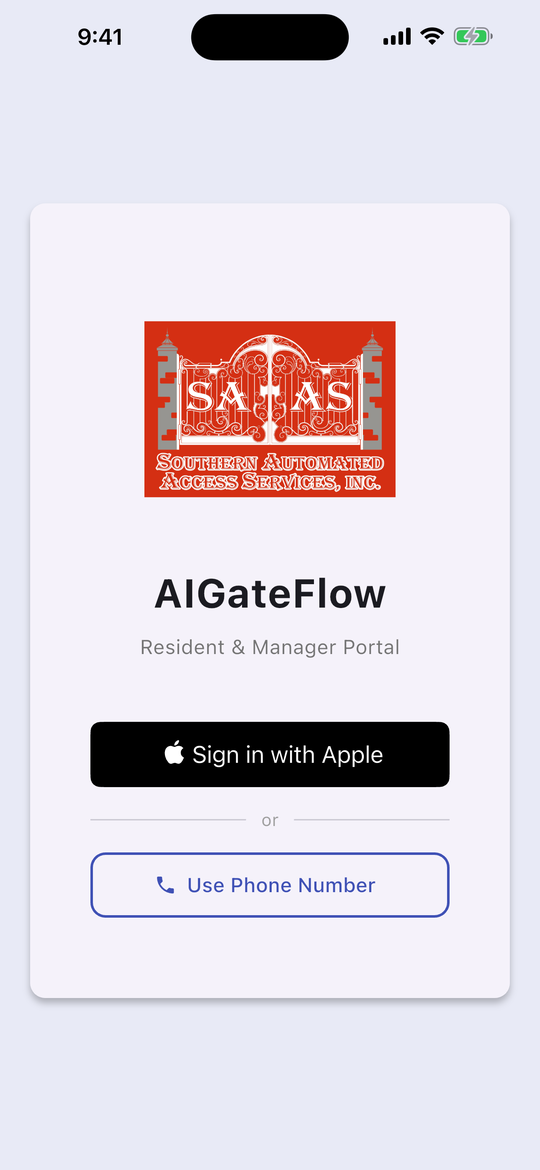
Verify your phone number
- Type your 10-digit mobile number, for example 8135550000.
- Tap Send Verification Code.
- You will get a text with a 6-digit code. Type it in and tap Verify Code.
No text after a minute? Tap Resend code. Codes expire, so use the newest one.
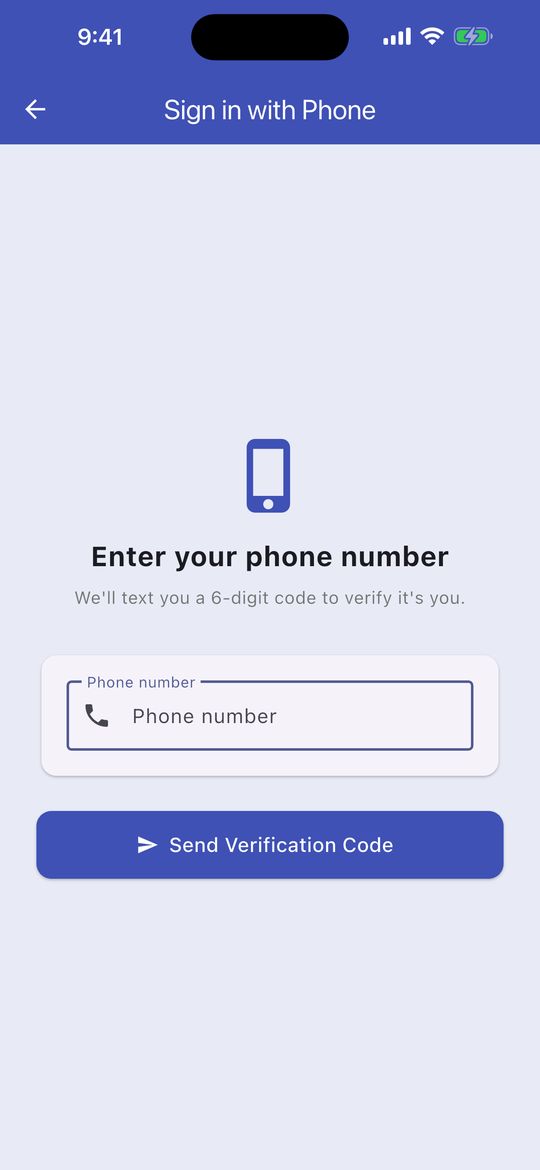
Enter your name
Type your full name and tap Continue. Use the name your HOA knows you by. Your admin sees it when deciding whether to approve you.
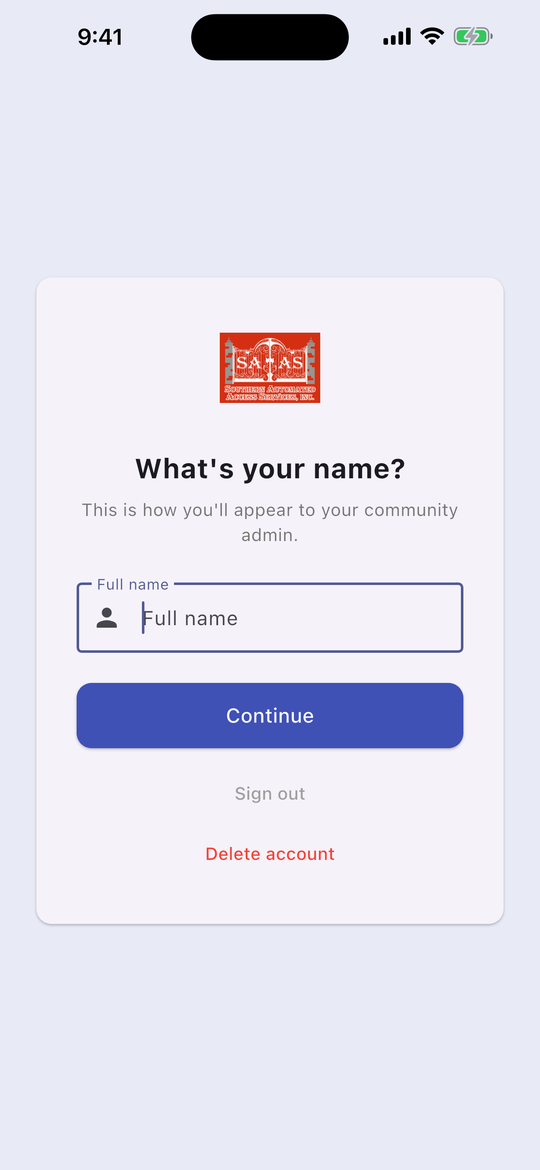
Enter your community's join code
Type the 6-character code from your HOA admin and tap Join Community. Capital or lowercase letters both work.
If you see “Invalid join code,” check the code with your HOA admin. Codes never contain the letters I or O or the numbers 0 or 1, so a character that looks like one of those is something else.
Wait for approval
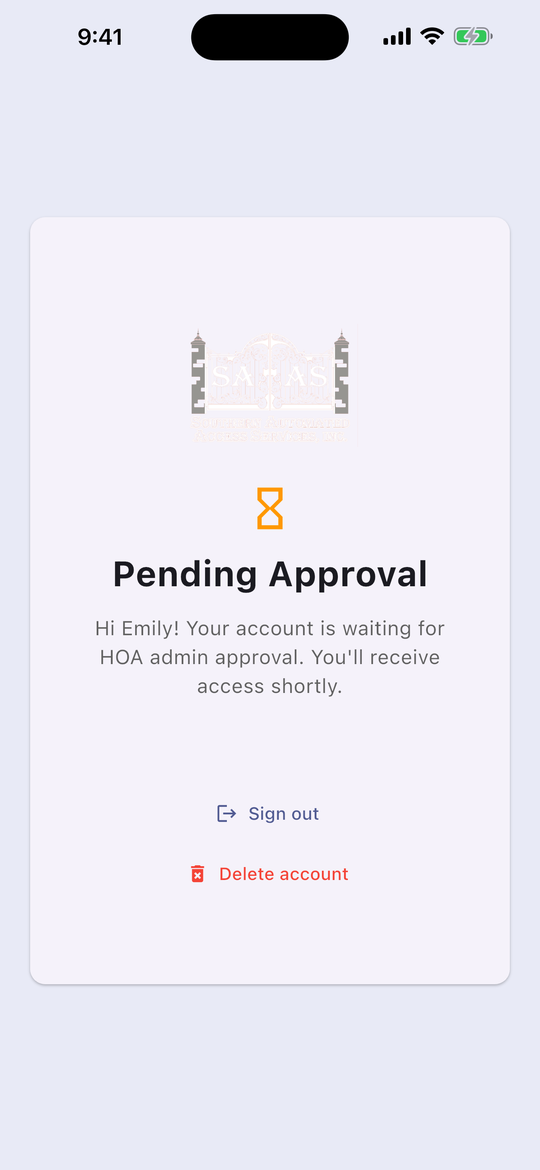
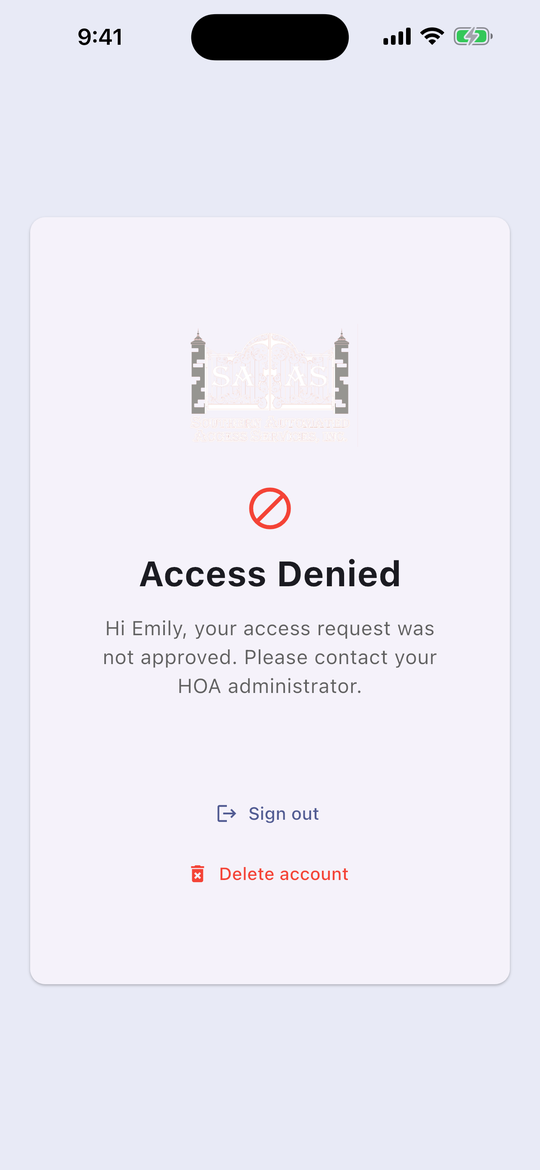
Your request goes to your HOA admin. Until they approve it you will see Pending Approval.
You do not need to do anything else. When you are approved, the app switches to your gate controls by itself. If you allowed notifications, you also get an “Access Approved!” alert.
Got an invite text instead of a join code?
Your admin can text you a personal invite link. Tap the link and sign in. You are approved right away, with no join code and no waiting. The link works once and expires after 7 days. If it has expired, ask your admin for a new one.
Use the app
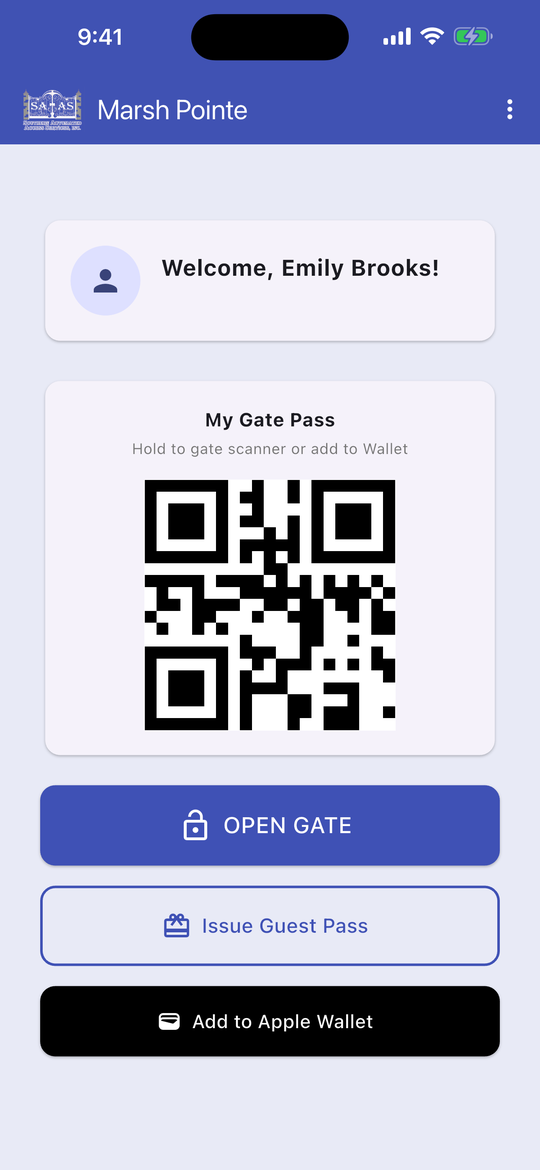
Everything is on one home screen. Your community's name is at the top.
Three ways to get in
- Tap OPEN GATE. A green “Gate open command sent!” message confirms it, and the gate opens a moment later. Your phone needs an internet connection.
- Scan My Gate Pass. Hold the QR code on your home screen up to the scanner at the gate.
- Use your Wallet. Tap Add to Apple Wallet (or Google Wallet) once. After that you can pull up your pass from your phone's Wallet and scan it at the gate without opening the app.
Send a guest pass
Use a guest pass for visitors, deliveries, and contractors. Your guest does not need the app.
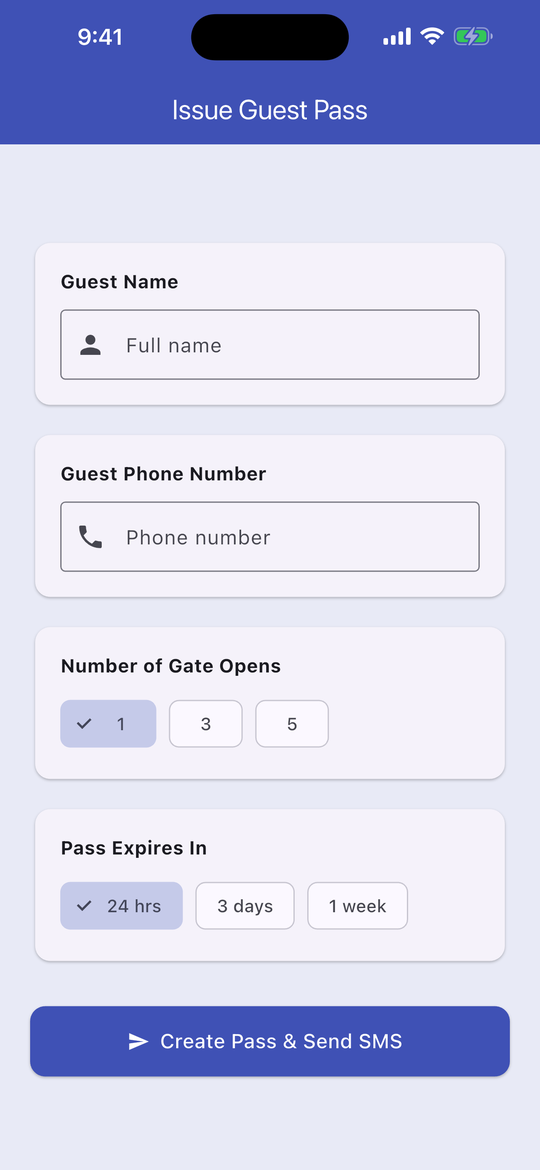
- On the home screen, tap Issue Guest Pass.
- Enter your guest's name and mobile number. Both are required.
- Choose Number of Gate Opens: 1, 3, or 5.
- Choose Pass Expires In: 24 hrs, 3 days, or 1 week.
- Tap Create Pass & Send SMS.
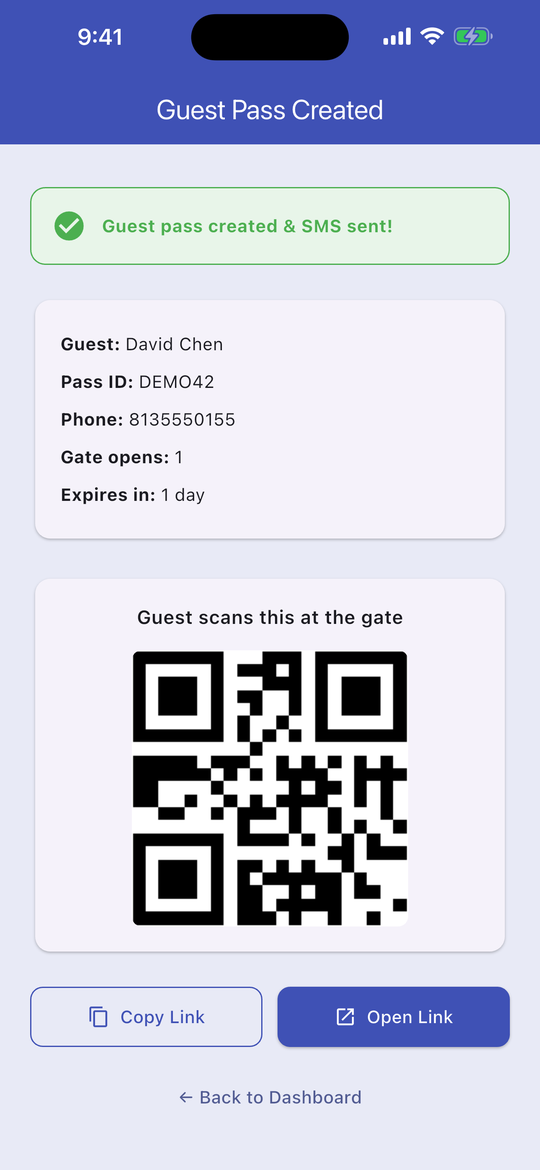
Your guest gets a text message with a QR code. At the gate, they hold that code up to the scanner. The pass stops working when its gate opens are used up or it expires, whichever comes first.
The confirmation screen shows the pass details and the same QR code. If the text does not reach your guest, tap Copy Link and send them the link yourself.
Sign out or delete your account
On the home screen, tap the three dots in the top-right corner.
- Sign out signs you out on this phone. Sign back in the same way you did before and your access is still there.
- Delete account permanently removes your account and your gate access. The app asks you to confirm first. To come back later you would need to set up and be approved again.
Moving out? Tell your HOA admin so they can remove your access.
If something is not working
| What you see | What to do |
|---|---|
| The verification code never arrives | Check the number you typed, then tap Resend code. If you see “Too many attempts,” wait a few minutes before trying again. |
| “Incorrect code” or “Code expired” | Tap Resend code and enter the newest code. |
| “Invalid join code” | Re-type the code carefully. If it still fails, ask your HOA admin for the current code. Admins can change it. |
| Stuck on Pending Approval | Your HOA admin has not approved you yet. Contact them directly. |
| You tapped OPEN GATE and the gate did not move | Check that your phone has signal or Wi-Fi and try once more. If it still does not open, scan your My Gate Pass code at the gate and let your HOA admin know. |
| “Wallet pass not available yet” | Close and reopen the app, then try again. If it keeps happening, contact your HOA admin. |
| Your guest's pass will not scan | Have them turn their screen brightness up and hold the code steady a few inches from the scanner. |
Questions about AIGateFlow?
We install and support AIGateFlow throughout Hillsborough, Pasco, and Hernando counties.